1. Ordinary Annuity (END) vs. Annuity Due (BGN)
In financial modeling and Time Value of Money (TVM) mathematics, timing is everything. A single day's difference in payment scheduling determines whether capital compounds immediately or sits idle, accumulating interest or missing out on returns.
The Texas Instruments BA II Plus (including both the standard and Professional editions) defaults to END mode right out of the factory box. In END mode, the calculator assumes that every recurring payment (PMT) occurs at the end of each compounding interval. This payment model is termed an Ordinary Annuity.
Conversely, an Annuity Due requires each cash flow to execute at the beginning of each period (Time $t=0, 1, 2, \dots, n-1$). To evaluate these transactions accurately, your calculator's underlying TVM engine must be shifted to BGN mode.
—
PMT 1
PMT 2
PMT 3
PMT 4
PMT 5
PMT 1
PMT 2
PMT 3
PMT 4
PMT 5
—
Notice the fundamental structural difference in the timeline above:
- Ordinary Annuity (END): The first payment occurs at $t=1$. The final payment occurs at maturity ($t=n$), earning zero interest between its deposit and the final valuation.
- Annuity Due (BGN): The first payment occurs instantly at inception ($t=0$). The final payment occurs at $t=n-1$, which means every single payment compounds for exactly one additional period ($1 + r$).
Regardless of whether you are calculating Present Value (PV) or Future Value (FV), the value of an Annuity Due is always equal to the value of an Ordinary Annuity magnified by exactly $(1 + r)$:
PV(Annuity Due) = PV(Ordinary Annuity) × (1 + r)
FV(Annuity Due) = FV(Ordinary Annuity) × (1 + r)
When you toggle the BA II Plus to BGN mode, the microcode does not ask you for extra inputs; it automatically incorporates this $(1 + r)$ compounding factor into all five TVM registers (N, I/Y, PV, PMT, FV).
2. Method 1: Using the Online BA II Plus Calculator
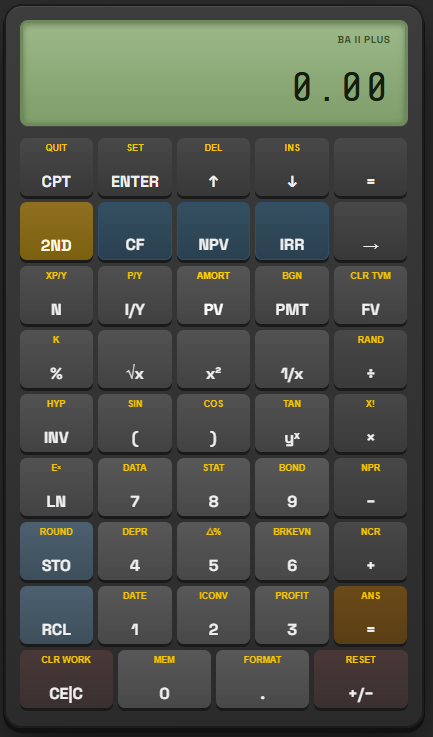
Using our BA II Plus Calculator on your desktop or phone, the internal state machine follows identical keystroke logic.
Setting payment timing is handled inside a specialized secondary worksheet called the BGN Worksheet. Follow this exact 3-step sequence:
Enter the Payment Timing Settings Screen
Access the hidden BGN worksheet located as the secondary function directly above the PMT key.
- • Press 2ND (the yellow/gold primary shift key in the upper-left quadrant).
- • Press PMT (observe the gold secondary label printed above it reading BGN).
![BA II Plus Calculator Step 1: Press [2ND] then [PMT] to enter timing menu showing END mode](../../END.png)
Execute the SET Command to Toggle Between Modes
The most common stumbling block for finance candidates is pressing ENTER alone. Pressing Enter alone does nothing because SET is a secondary function.
- • Press 2ND again to activate secondary command mode.
- • Press ENTER (observe the secondary text SET printed right above the Enter button).
![BA II Plus Calculator Step 2: Press [2ND] then [ENTER] (SET) to toggle display to BGN](../../BGN.png)
Exit the Worksheet and Confirm the Persistent Indicator
You must exit the timing worksheet to return to the standard calculation environment.
- • Press 2ND then CPT (which invokes the gold QUIT function).
- • Alternative: You can also press the red/clear CE/C key located in the bottom-left corner to exit safely.
0.00 or your previous numeric result). Crucially, a persistent,
miniature BGN annunciator remains visible in the upper status bar of the
LCD. As long as this text appears, all subsequent TVM calculations will execute under
Annuity Due formulas.
![BA II Plus Calculator Step 3: Press [2ND] then [CPT] (QUIT) with persistent BGN annunciator](../../Lock_BGN.png)
| Phase | Keystrokes | Secondary Function | LCD Readout | Operational State |
|---|---|---|---|---|
| 1. Open | 2ND PMT | BGN Worksheet | END |
Worksheet opened; displays current setting |
| 2. Toggle | 2ND ENTER | SET Command | BGN |
State toggled from END to BGN |
| 3. Lock & Quit | 2ND CPT | QUIT Mode | 0.00 [BGN] |
Standard calculation mode; BGN flag active |
3. Method 2: Using the TVM Calculator
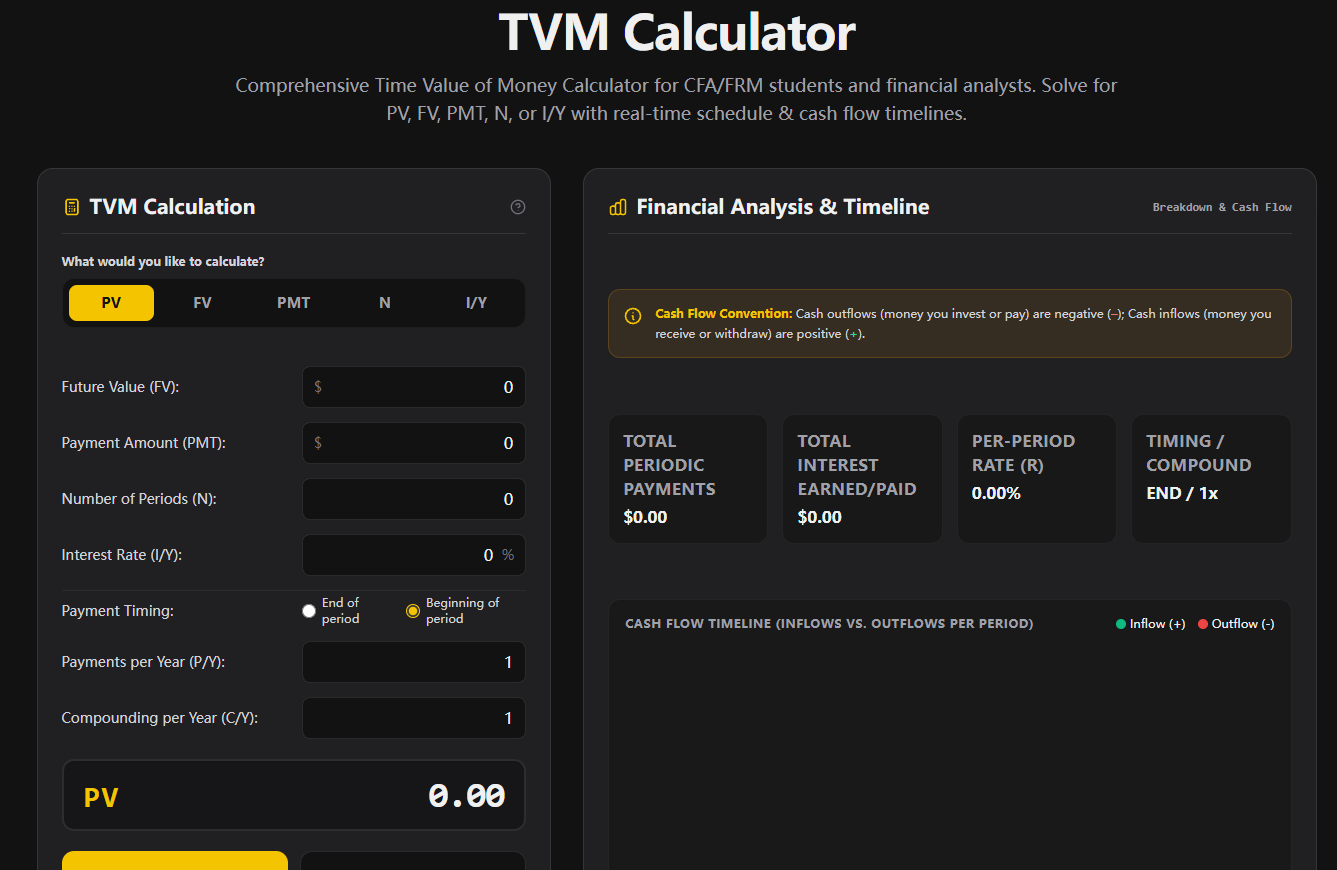
In addition to the authentic full-key simulator, our platform provides streamlined modern web calculators (such as the Dedicated TVM Calculator and Savings Calculator) designed for rapid parameter entry without manual hardware keystroke hunting.
How to Toggle Timing on Modern Web Form Worksheets:
- Locate the Payment Timing Control: In the TVM Calculator, find the Payment Timing (or Payment Mode) selector located alongside the payment frequency settings.
- Select Beginning of Period: Switch the selector from the default End of Period (Ordinary Annuity / END) to Beginning of Period (Annuity Due / BGN) using the radio toggle or dropdown menu.
- Trigger Instant Compute: Click the primary Calculate button or click directly on any solve button (such as PV or PMT). The TVM Calculator computes the result instantly, displaying complete step-by-step mathematical breakdowns without any risk of sticky register corruption.
4. The Critical Reset: How to Switch Back to END Mode
Knowing how to turn BGN mode on is only half the battle. In practice, knowing how to turn BGN mode off immediately after completing your problem is what protects your exam score.
Because the Texas Instruments BA II Plus Calculator features Continuous Memory (Automatic Power Down / APD maintains all register states and settings even when the device is turned off), your calculator will stay in BGN mode forever until you intentionally switch it back or execute a destructive hard reset.
The Exact Keystroke Stream to Return to END:
5. The #1 CFA & FRM Silent Exam Trap: The "Sticky BGN" Disaster
Every year, hundreds of CFA and FRM candidates lose critical marks not because they did not know the valuation formulas, but because they fell victim to what test-prep instructors call "The Sticky BGN Trap."
Question writers for the CFA Institute and GARP understand calculator behavior intimately. When constructing multiple-choice questions for fixed income bond pricing or mortgage amortization (which assume Ordinary Annuities), they intentionally calculate the numerical answer in both END mode and BGN mode.
They list the incorrect BGN-mode result as Option B and the correct END-mode result as Option C. If you previously solved a lease problem in BGN mode and forgot to reset, you will compute the bond price, see your exact number sitting right there on Option B, select it with total confidence, and receive zero credit!
The Golden Protocol for Exam Day:
Adopt this strict three-phase habit during mock exams and study sessions:
- Phase A (Verify State): Before reading Question 1, look at your LCD. Confirm that
the top banner is 100% clean and free of the word
BGN. - Phase B (Execute & Isolate): If a question explicitly states "payments are made in advance," "rent is due immediately," or "first deposit made today," switch to BGN mode and compute the answer.
- Phase C (Immediate Reflex Reset): The millisecond your pencil circles the answer, your fingers must automatically execute 2ND PMT 2ND ENTER 2ND CPT before your eyes even move to the next question.
6. Worked Financial Examples with Complete Keystrokes & Explanations
To cement these concepts, let us walk through two real-world finance case studies, complete with step-by-step keystrokes, LCD outputs, and mathematical verifications.
Present Value of a Commercial Office Lease (Annuity Due)
Financial Variables Identified:
- Compounding / Payment Frequency: Monthly ($P/Y = 1, C/Y = 1$ with periodic rate, or set $P/Y = 12$)
- Number of Periods ($N$): $4 \times 12 = 48$ months
- Monthly Periodic Rate ($I/Y$): $6.0\% / 12 = 0.50\%$
- Payment Amount ($PMT$): $-\$5,000$ (cash outflow)
- Future Value ($FV$): $\$0$
- Timing: BGN (Payments in advance)
Complete Step-by-Step Keystroke Sequence:
If calculated erroneously in END mode, the result would be
$212,809.69.
Applying our theoretical multiplier formula:
$212,809.69 × (1 + 0.005) = $213,873.74.
The exact difference is $1,064.05—a significant variance that would result in
an immediate incorrect answer on a professional examination.
Future Value of a Tuition Fund with Immediate Initial Deposit
Financial Variables Identified:
- Number of Annual Deposits ($N$): $18$
- Annual Compounding Interest ($I/Y$): $7.5\%$
- Present Value ($PV$): $\$0$ (the first payment is handled via the PMT register in BGN mode)
- Annual Payment ($PMT$): $-\$3,000$
- Timing Mode: BGN
Keystroke Flow:
Under Ordinary Annuity (END mode), the future value is only $106,833.37.
By depositing at the start of each year instead of the end, the family earns an additional
$8,012.50 purely from the extra year of compounding on every dollar!
7. Technical Quirks & Calculator Memory Myths
Understanding how the BA II Plus firmware handles memory registers separates top-percentile test-takers from struggling candidates. Here are the core technical truths you must know:
Myth 1: "Pressing 2ND CLR TVM clears BGN mode."
FALSE. Executing 2ND FV (CLR TVM) clears the numerical floating-point registers for $N, I/Y, PV, PMT, FV$, writing zeros into memory. However, it leaves all worksheet configurations completely untouched. Your payment timing (BGN/END) and payment frequencies ($P/Y, C/Y$) remain 100% active.
Myth 2: "Cash Flow Worksheet (NPV/IRR) is affected by BGN mode."
FALSE. The Cash Flow worksheet (CF, NPV, IRR) operates under an explicit timeline defined by individual indices: $CF_0, C01, F01, C02, \dots$. By mathematical definition, $CF_0$ is always the cash flow at Time 0. Therefore, the BGN/END toggle has zero mathematical effect on the Cash Flow worksheet.
Myth 3: "Turning the calculator off resets it to END mode."
FALSE. The Texas Instruments hardware employs non-volatile CMOS memory backed by continuous battery power. Turning the unit off (or allowing it to power down automatically via APD) preserves all settings. When you turn it back on, BGN mode will still be active.
8. Frequently Asked Questions
Q1: Why does pressing [ENTER] directly in the BGN worksheet do nothing?
A: On the BA II Plus, the primary function of the ENTER key is to assign a numerical value from the display into an active variable register (like entering numbers into P/Y or N). To toggle binary text options (such as END vs. BGN, or Chn vs. AOS), the calculator requires the secondary SET command, which is accessed by pressing 2ND before pressing ENTER.
Q2: What is the fastest way to check if my calculator is currently in BGN mode?
A: Simply look at the very top edge of the LCD display in standard calculation mode.
If your calculator
is in BGN mode, three uppercase characters—BGN—will appear permanently in the
upper-right corner above the numbers. If that area is completely blank, the calculator is in
standard END mode.
Q3: What happens if I perform an Amortization calculation while in BGN mode?
A: The Amortization worksheet (2ND PV) dynamically synchronizes with the TVM timing state. If BGN
mode is enabled, the amortization engine assumes payments occur at period beginnings, meaning Period
1 will reflect zero accrued interest on the first payment (PRN = PMT, INT = 0). While
correct for
leases, this will completely corrupt standard residential mortgage problems.
Q4: Can I solve Annuity Due questions without switching to BGN mode?
A: Yes! Because PV(Due) = PV(Ordinary) × (1 + r) and
FV(Due) = FV(Ordinary) × (1 + r),
you can leave your calculator permanently in END mode, calculate the ordinary annuity PV or FV, and
then simply multiply the resulting answer by (1 + r).
Many experienced CFA charterholders use this technique exclusively to completely eliminate the risk
of the "Sticky BGN" trap.
Q5: Does replacing the calculator battery reset BGN mode?
A: Yes. Removing the CR2032 lithium battery or pressing the physical reset button on the back of the casing discharges the CMOS memory, executing a cold reset that restores all factory defaults: END mode, Chain (Chn) calculation method, and 2 decimal places.