1. The Silent Calculation Trap in Exam Rooms
Imagine sitting for the CFA Level I or FRM Part I exam. You encounter a multi-step bond pricing or Weighted Average Cost of Capital (WACC) question. You confidently tap in the numbers, evaluate your expression, select the multiple-choice option that matches your calculator screen perfectly, and move on.
Unbeknownst to you, you just fell into the most common calculation trap in financial testing. The answer choice you picked was a carefully planted distractor, engineered specifically for candidates whose calculators are set to Chain (Chn) mode rather than Algebraic Operating System (AOS).
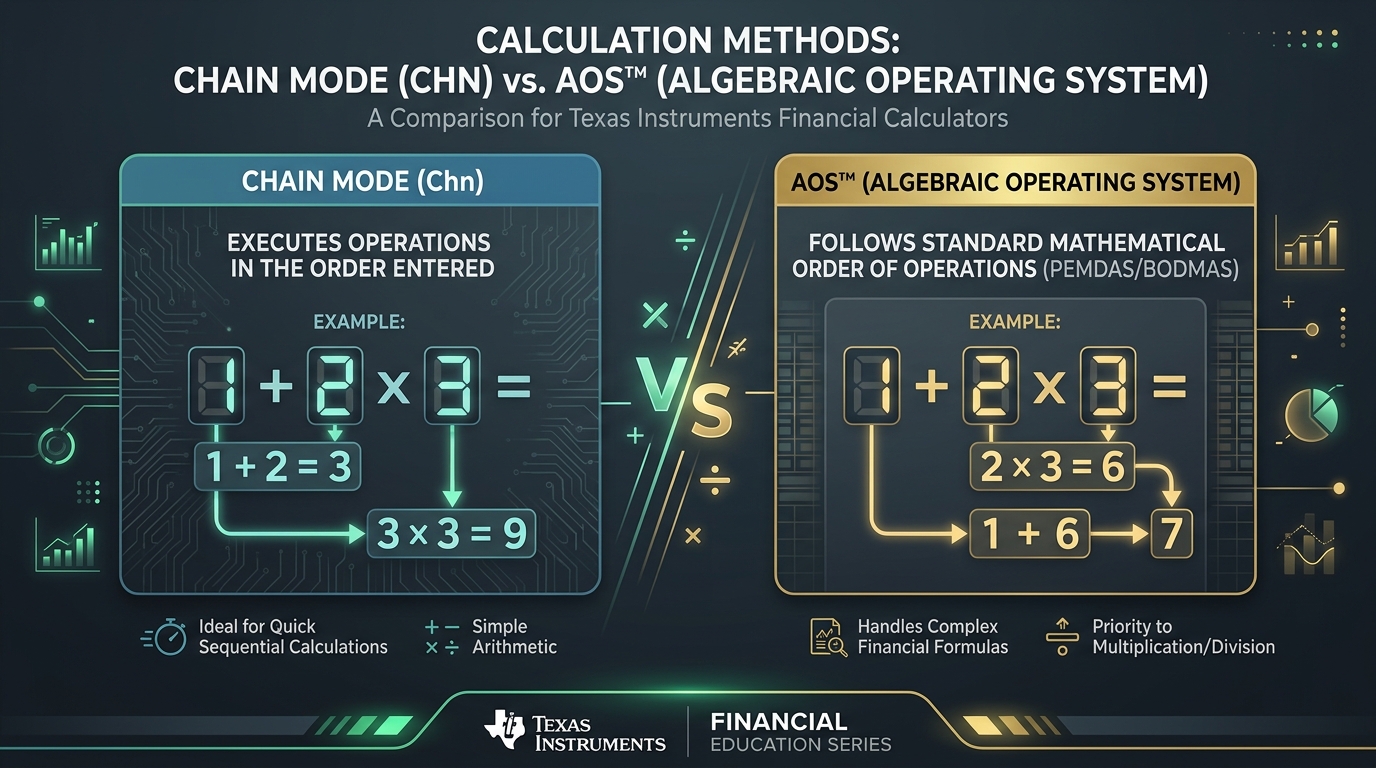
Every brand-new Texas Instruments BA II Plus—and every unit that has recently undergone a battery swap or hardware reset—ships from the factory preset to Chn (Chain) mode. If you enter:
On an ordinary scientific calculator, your smartphone, or an Excel sheet, you obtain 7. But on a factory-fresh BA II Plus, the display boldly reads:
Why does this happen? Is the calculator defective? Not at all. It is faithfully executing Chain arithmetic. Understanding why this happens, how the internal math processor functions, and how to permanently configure your calculator for your professional work is essential for every analyst.
2. Architectural Deep-Dive: How Chn vs. AOS Processes Math
To understand the difference, we must examine how microprocessor registers in hand-held financial calculators handle arithmetic operations.
2.1 Chain Mode (Chn): Immediate Sequential Execution
In Chn mode, the BA II Plus functions with an immediate-accumulator architecture. It evaluates operations strictly in the sequence you enter them, from left to right, completely ignoring standard mathematical operator precedence (commonly known as PEMDAS or BODMAS: Parentheses, Exponents, Multiplication/Division, Addition/Subtraction).
When you press an arithmetic operator key (+, −, ×, ÷), the calculator instantly executes whatever binary operation is currently pending and places the intermediate result directly into the display accumulator.
1. You press 1, then +. The calculator stores 1 +.
2. You press 2. The screen displays 2.
3. You press ×. In Chain mode, the calculator does
not wait to see what you are multiplying. The act of pressing × triggers immediate resolution of the previous operation:
1 + 2 = 3. The screen updates to 3, and the new pending operation becomes
3 ×.
4. You press 3, followed by =. The calculator resolves 3 × 3 = 9.
The Exception: Parentheses Override Chain Execution. If you explicitly wrap
sub-expressions in parentheses using ( and ), the BA II Plus will isolate the parenthetical term and
compute it first. For example, entering 1 + ( 2 × 3 ) = in Chn mode produces
7.00. However, this demands extra keystrokes and mental vigilance under timed exam
pressure.
2.2 AOS Mode (Algebraic Operating System): Strict Mathematical Hierarchy
In AOS mode, the BA II Plus maintains an internal operation stack that honors standard mathematical hierarchy:
- Parentheses: Operations enclosed in
( )are evaluated first, starting from the innermost nest. - Exponents: The yˣ power function is processed next.
- Multiplication & Division: Handled with equal priority from left to right.
- Addition & Subtraction: Handled last, with equal priority from left to right.
When you input 1 + 2 × 3 = in AOS mode, the calculator recognizes that multiplication
(×) possesses higher priority than addition (+). It preserves 1 + on the pending stack, computes
2 × 3 = 6, and finally adds 1 + 6 = 7.00.
3. Side-by-Side Comparison Matrix
The table below provides a quick reference comparing every technical and operational attribute of both calculation modes:
| Parameter | Chain Mode (Chn) | AOS Mode (Algebraic) |
|---|---|---|
| Evaluation Order | Sequential (left-to-right as entered) | Standard algebraic hierarchy (PEMDAS) |
| Operator Precedence | None (all operators have equal priority) | Strict: Parentheses → Powers → Multiply/Divide → Add/Subtract |
| Expression 1 + 2 × 3 = | Result = 9.00 | Result = 7.00 |
| Expression 10 − 2 × 4 = | Result = 32.00 (10 − 2 = 8; 8 × 4 = 32) | Result = 2.00 (10 − 8 = 2) |
| LCD Annunciator Status | No indicator (blank upper status line) | Displays AOS in the upper left LCD indicator |
| Factory Reset Default | Yes (reverts here upon battery pull or hard reset) | No (must be manually enabled) |
| Parentheses Requirement | Mandatory for multi-term discounting & CAPM | Optional (only required when overriding natural math rules) |
| Best Used For | Running grocery tallies, quick sequential additions | CFA / FRM exams, corporate valuation, bond analytics |
4. Step-by-Step: How to Switch Between Chn and AOS
Switching calculation modes takes less than five seconds once you know the exact shortcut. Follow the visual steps and keystrokes below:
Open the FORMAT Worksheet
Press the golden secondary key 2ND, then press the
decimal point key . (which has FORMAT
printed above it in gold lettering).
Navigate to the Calculation Method Screen
By default, the screen displays DEC = 2.00. Press the ↑ (Up Arrow) key once. (Pro-tip:
pressing Up Arrow once jumps backward to the end of the circular menu directly to
CALC METHOD. Alternatively, press ↓
three times).
Toggle Between Chn and AOS
Press 2ND, then press ENTER (which has SET printed in gold
above it). You can also press ENTER directly. The
display will toggle between Chn and AOS.
Quit and Save the Setting
Press 2ND, then press CPT (which has QUIT in gold above it).
Your setting is committed into non-volatile Constant Memory.
4.1 Screen Visualizer & Status Annunciators
Here is what your calculator display looks like during each phase of the mode toggle. The annotated photographs below illustrate the exact physical keystrokes and corresponding screen responses on the Texas Instruments BA II Plus:
Enter FORMAT Menu & Navigate to Chn
Press 2ND + .
(FORMAT), then press ↑ (or ↓) to access the CALC METHOD screen. The
display shows default Chn mode:
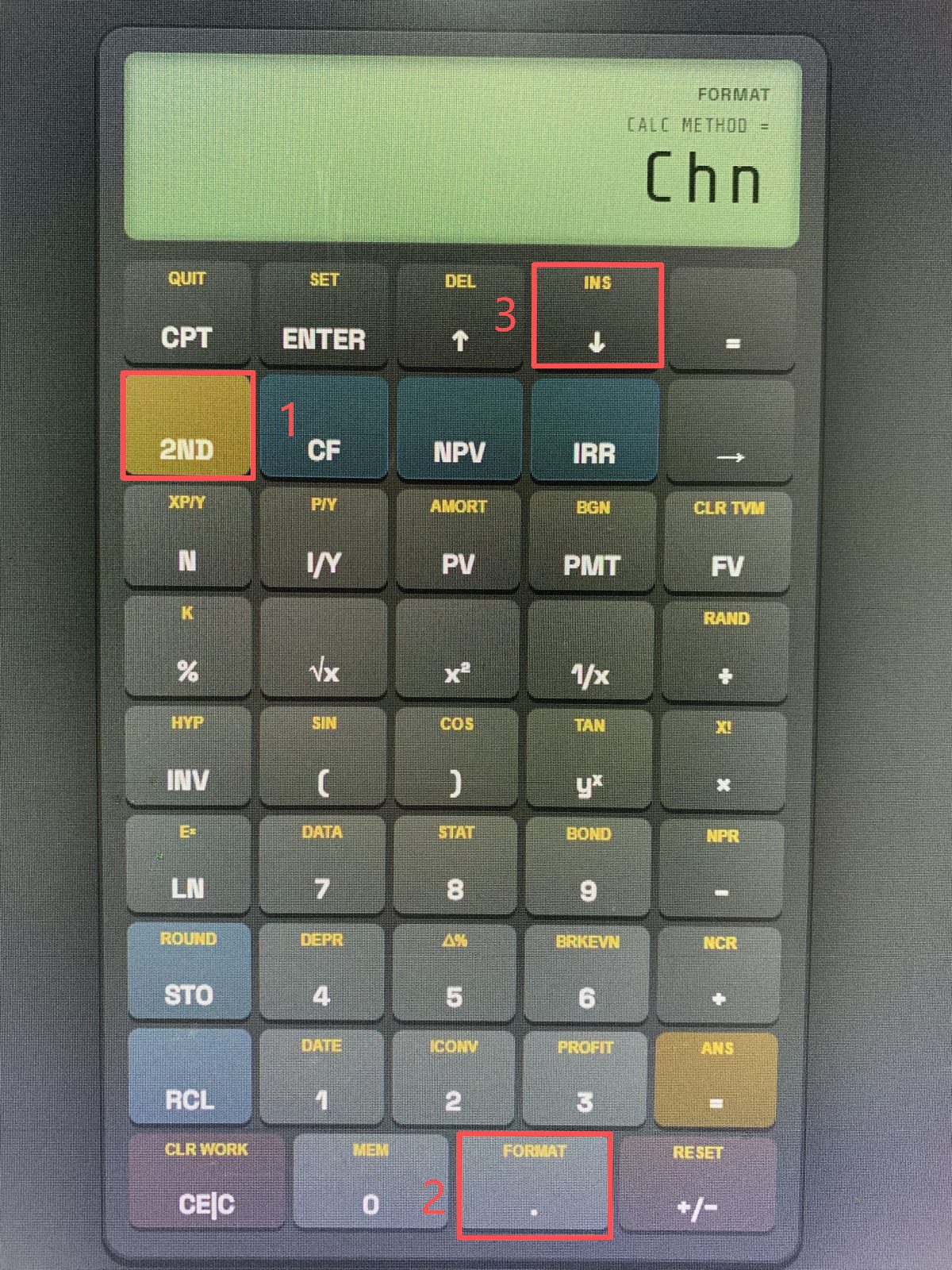
Chn) mode.
Toggle Calculation Method to AOS
Press 2ND + ENTER (SET).
The display immediately flips to AOS, and the upper-left AOS
status indicator illuminates:
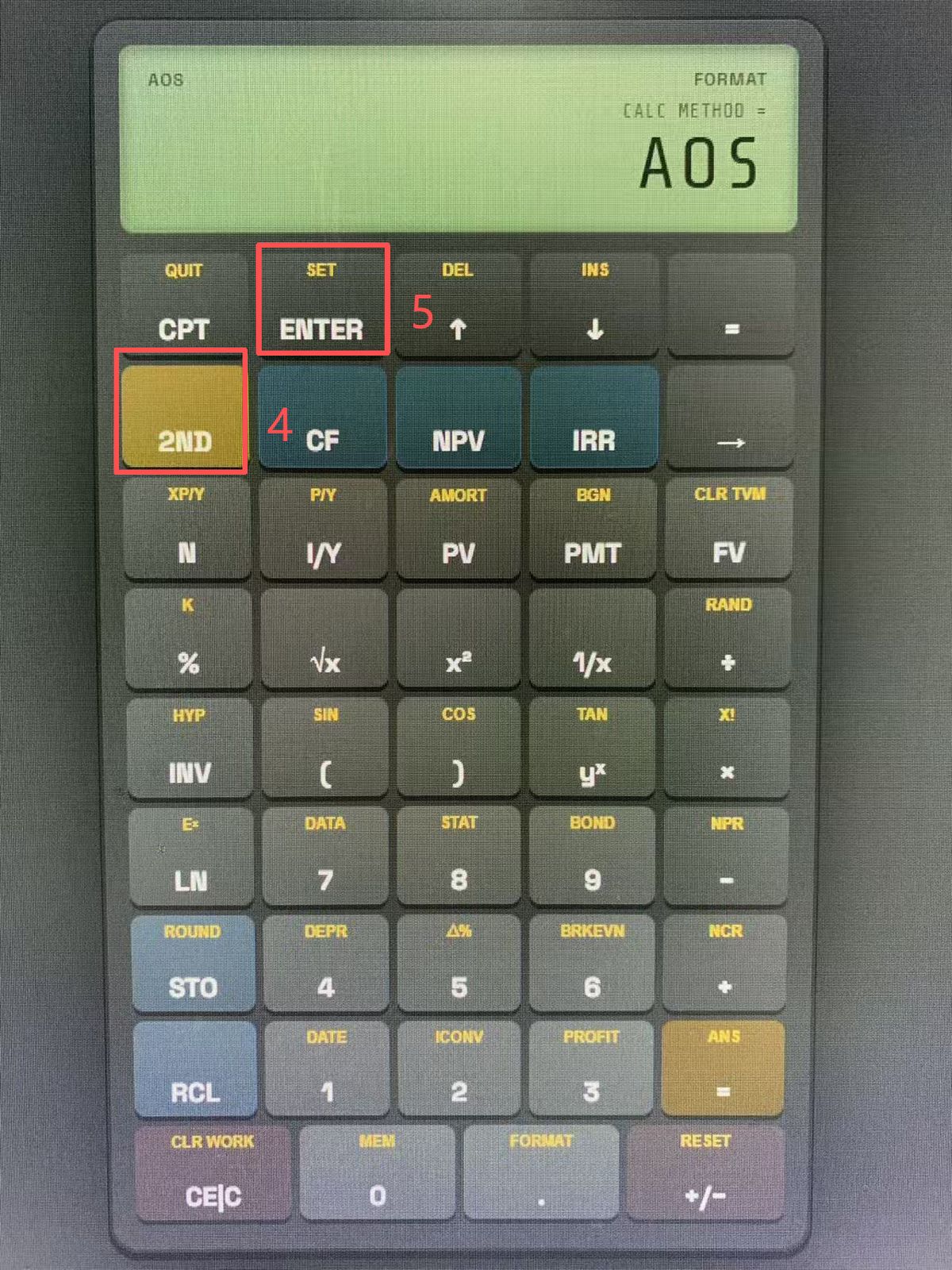
SET (Steps 4–5) switches to
AOS mode; note the illuminated AOS annunciator flag.
Return to Normal Calculation Screen & Confirm Annunciator
Finally, press 2ND + CPT (QUIT) to return to standard calculation. Your mode selection is saved into non-volatile Constant Memory.
Observe the top-left corner of the standard 0.00 calculation display. A small black
annunciator reading AOS remains visible at all times, confirming that algebraic
hierarchy is permanently active:
Glance at the top-left corner of your calculator screen before beginning any exam section or problem set. If AOS is visible, standard order of operations (multiplication & division before addition & subtraction) is enforced. If the status line is blank, your calculator has reverted to default Chain (Chn) mode.
5. Five Real-World Finance & CFA Exam Traps Walkthrough
Let us examine five authentic financial calculations where operating in Chain mode without extra parentheses results in severe errors.
Case 1: Capital Asset Pricing Model (CAPM)
Problem: Calculate the expected return of an equity portfolio with a risk-free rate (Rf) of 3.5%, a portfolio beta (β) of 1.20, and an equity market risk premium (Rm − Rf) of 6.0%.
| Mode | Keystroke Sequence Entered | Internal Calculation | Screen Result | Status |
|---|---|---|---|---|
| Chn | 3.5 + 1.2 × 6 = | (3.5 + 1.2 = 4.7) × 6.0 | 28.20% | ❌ Disastrous Error |
| AOS | 3.5 + 1.2 × 6 = | 3.5 + (1.2 × 6.0 = 7.2) | 10.70% | ✅ Correct Answer |
In Chain mode, when you tap × after 1.2, the
calculator immediately adds 3.5 + 1.2 = 4.7, then multiplies the sum by 6.0, resulting in an absurd
28.20%. To get the right answer in Chn mode, you would be forced to enter
3.5 + ( 1.2 × 6 ) = or calculate the product first and store it in a memory register. In
AOS mode, you type the formula exactly as it appears in the curriculum.
Case 2: Weighted Average Cost of Capital (WACC)
Problem: A firm has 40% debt financing at an after-tax cost of 4.5%, and 60% equity financing at a cost of 11.0%.
| Mode | Keystroke Sequence | Calculated Progression | Result |
|---|---|---|---|
| Chn (Without Parens) | 0.4 × 4.5 + 0.6 × 11 = |
(0.4 × 4.5 = 1.8) + 0.6 = 2.4; then 2.4 × 11 = 26.40 | 26.40% ❌ |
| AOS (Natural Entry) | 0.4 × 4.5 + 0.6 × 11 = |
(0.4 × 4.5 = 1.8) + (0.6 × 11 = 6.6) = 8.40 | 8.40% ✅ |
Case 3: Dividend Discount Model (Gordon Growth)
Problem: A stock pays an expected dividend D1 = $3.00, with a required return r = 10% and dividend growth rate g = 4%.
The Trap: Notice that in both modes, evaluating a fraction with a subtracted denominator requires parenthesis around the denominator if entered sequentially:
- If you type
3 ÷ 0.10 − 0.04 =:- In Chn mode: 3 ÷ 0.10 = 30; 30 − 0.04 = 29.96 ❌
- In AOS mode: Division takes precedence! 3 ÷ 0.10 = 30; 30 − 0.04 = 29.96 ❌
- Correct keystroke in both modes: 3 ÷ ( 0.10 − 0.04 ) = → $50.00 ✅.
Case 4: Present Value of a Single Future Cash Flow with Power Function
Problem: Discount a $5,000 lump sum received in 4 years at a discount rate of 8%, plus an upfront fee refund of $250.
In AOS mode, the exponent function yˣ has higher precedence than division, and division has higher precedence than addition:
- Keystroke in AOS: 250 + 5000 ÷ 1.08 yˣ 4 =
- Calculator automatically executes: 1.084 = 1.36049; then 5,000 ÷ 1.36049 = 3,675.15; then 250 + 3,675.15 = 3,925.15 ✅.
- In Chn mode, without parentheses, entering this sequence will add 250 + 5,000 = 5,250, divide by 1.08 = 4,861.11, and raise the entire result to the 4th power, producing an astronomical overflow error!
Case 5: Bond Modified Duration & Convexity Price Adjustment
Problem: Estimate the percentage price change of a bond with Modified Duration (ModDur) of 7.5, Convexity (C) of 68.0, and a yield decrease (Δy) of −150 bps (−0.015).
Plugging in figures: −7.5 × (−0.015) + 0.5 × 68.0 × (0.015)²
- Term 1 (Duration): −7.5 × −0.015 = +0.1125 (+11.25%)
- Term 2 (Convexity): 0.5 × 68.0 × 0.000225 = +0.00765 (+0.765%)
- Total expected price change: 11.25% + 0.765% = +12.015%.
In AOS mode, you can type this polynomial expression from start to finish in a single stream. In Chn mode, the calculator will chain Term 1 into the multipliers of Term 2, completely corrupting the estimation.
6. Which Mode Should You Use for the CFA, FRM, or Corporate Finance?
Almost every leading financial prep institute—including Kaplan Schweser, Mark Meldrum, Wiley, and AnalystPrep—explicitly recommends that candidates switch their calculator to AOS mode on Day 1 of study.
1. Direct Formula Translation: Financial exam formulas are written in algebraic
notation. AOS lets your fingers replicate what your eyes read on the exam page.
2. Keystroke Minimization: You don't need to manually type opening and closing
parentheses around every single product or quotient.
3. Cognitive Load Reduction: Under severe 90-second-per-question exam constraints,
your mental energy should be focused on problem synthesis, not manual operator sequencing.
Is there any reason to use Chain (Chn) mode? Yes. Chn mode is beneficial when calculating continuous rolling tallies—such as adding a column of ledger expenses, applying a continuous markup, or computing quick arithmetic margins where an immediate subtotal is desired after each step.
7. Reset Protocols & Battery Replacement Danger
Here is the single most critical warning for exam day:
If your calculator's coin battery dies, or if an exam proctor performs a hard reset before you enter the test center, the BA II Plus automatically reverts to factory Chn mode! Furthermore, it resets decimals from 4 or 9 back to 2.
Memorize this 10-second post-reset recovery drill:
- Press 2ND . (FORMAT).
- Press 4 or 9, then ENTER (Sets decimal places to 4 or floating 9).
- Press ↑ (Jumps directly to
CALC METHOD). - Press 2ND ENTER
(Toggles
ChntoAOS). - Press 2ND CPT (QUIT).
- Verify: Look for the small AOS text in the upper-left of the LCD.
8. Interactive Practice & Verification
Want to test these exact keystrokes without risking your physical calculator settings? Try our browser-based simulator right now. It provides a pixel-perfect emulation of the Texas Instruments BA II Plus with full support for both Chn and AOS modes, complete with the authentic LCD status annunciators.
Use Chn & AOS Modes in BA II Plus Calculator Online
Experience real-time operator collapsing in Chn mode versus algebraic hierarchy in AOS mode.
Open BA II Plus Calculator ➔9. Frequently Asked Questions
A: Historical precedent and legacy hardware architecture. When early electronic business calculators were developed in the 1970s and 1980s, memory registers were expensive and limited. Performing calculations sequentially (accumulator arithmetic) required far less RAM than holding multi-level operator stacks. Texas Instruments retained Chn as the default across generations of the BA II series for backward consistency with older accounting textbooks.
A: No. Worksheets operate independently of the calculation method. The TVM engine (N, I/Y, PV, PMT, FV), Cash Flow worksheet (CF, NPV, IRR), and Amortization schedules use their own dedicated internal numerical algorithms. Chn vs. AOS only controls how expressions are parsed on the standard arithmetic calculation line.
A: Look at the top line of the LCD display. If you are in AOS
mode, the letters AOS appear in small print in the upper-left corner.
If the upper line is blank (or only displays BGN if annuity due mode is enabled), your
calculator is operating in Chn mode.
A: Yes. The open and close parenthesis keys ( and ) isolate
the enclosed operation. Entering 3.5 + ( 1.2 × 6 ) = in Chn mode produces
10.70, exactly as in AOS mode. However, forgetting a single set of parentheses will
lead to an erroneous answer.
A: Yes. You can switch between Chn and AOS at any time by accessing 2ND + FORMAT without clearing any of your stored TVM variables, Cash Flow entries, or memory registers (STO 0–9).