To use the Amortization Worksheet on your Texas Instruments BA II Plus:
- Enter TVM parameters first: Input N, I/Y, PV, and compute payment CPT ➔ PMT.
- Open AMORT worksheet: Press 2ND ➔ Press AMORT (located on the PV key).
- Set starting period P1: Type start period (e.g.
1) ➔ Press ENTER. - Set ending period P2: Press ↓ ➔ Type
end period (e.g.
12) ➔ Press ENTER. - Inspect outputs: Press ↓ repeatedly to cycle through BAL (Ending Balance), PRN (Principal Paid), and INT (Interest Paid).
1. What is the AMORT Worksheet on the BA II Plus?
When you take out an amortizing loan—such as a fixed-rate home mortgage, auto loan, or corporate bond—each monthly payment you make is split into two distinct portions:
- Interest (INT): The fee paid to the lender for borrowing the principal.
- Principal (PRN): The amount that directly reduces your outstanding loan balance.
In the early years of a long-term loan (like a 30-year mortgage), interest dominates your monthly check. As the outstanding balance drops, interest charges shrink, allowing a larger percentage of your payment to chip away at the principal balance (BAL).
Manually calculating the interest and principal breakdown for period 147 of a 360-month loan using algebraic formulas requires tedious multi-step formulas. Fortunately, the Texas Instruments BA II Plus calculator includes a built-in Amortization (AMORT) Worksheet. This specialized worksheet automatically aggregates balance remaining, cumulative principal paid, and cumulative interest paid across any single month or range of months in seconds.
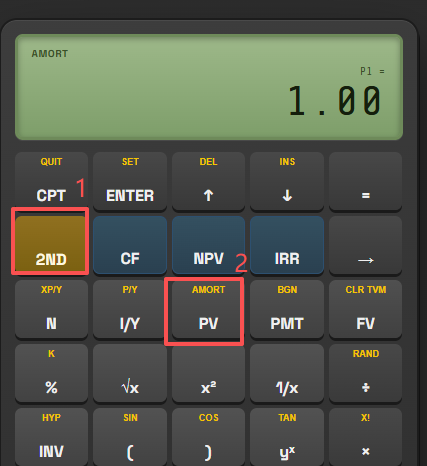
2. Understanding Amortization Variables (P1, P2, BAL, PRN, INT)
When you enter the AMORT worksheet, pressing the up (↑) and down (↓) arrow keys scrolls through five primary variables. Understanding how these variables interact is critical to getting accurate results:
| Variable | Screen Label | Description & Usage |
|---|---|---|
| P1 | P1 = |
Starting Payment Period. The first payment number in the range you want
to analyze (e.g. 1 for Month 1 or Year 1 start). |
| P2 | P2 = |
Ending Payment Period. The final payment number in the range you want
to analyze (e.g. 12 for Year 1 end, or 1 if analyzing Month 1
alone). |
| BAL | BAL = |
Remaining Principal Balance. The exact dollar loan principal remaining
immediately after payment P2 is made. |
| PRN | PRN = |
Principal Paid. The cumulative principal reduction achieved between
period P1 and period P2 (displayed as a negative cash flow).
|
| INT | INT = |
Interest Paid. The total cumulative interest charged by the lender
between period P1 and period P2 (displayed as a negative cash
flow). |
For any specified range of payments between P1 and P2, the sum of
cumulative principal and interest equals total cash payments made over that duration:
$$\text{Total Payments Made} = (\text{P2} - \text{P1} + 1) \times |\text{PMT}| = |\text{PRN}| + |\text{INT}|$$
3. Step 1: Pre-Requisite TVM Setup (Crucial Step!)
The single most common mistake finance students make when using the AMORT worksheet is opening
2ND ➔ AMORT immediately on a blank calculator. The AMORT worksheet
does not operate in isolation! It pulls its underlying loan balance, interest rate, term,
and payment amount directly from the active Time Value of Money (TVM) registers (N, I/Y, PV, PMT, FV).
Therefore, before entering AMORT mode, you must compute or store the loan's TVM parameters in the top row of keys.
Clear Memory Registers
Press 2ND ➔ CLR TVM to reset residual TVM values to 0.
Verify Annual Payments Per Year (P/Y & C/Y)
Press 2ND ➔ P/Y. For monthly mortgage or car payments, set
P/Y = 12 and press ENTER. Press CE/C to return.
Input Principal, Rate, and Term
Input your loan amount into PV, annual interest rate into I/Y, total periods into N, and set FV = 0.
Compute Monthly Payment (PMT)
Press CPT ➔ PMT. Once PMT is calculated on screen, it is automatically saved into the TVM register memory for the AMORT worksheet to reference.
4. Step 2: Complete 30-Year Mortgage Example ($250,000 at 6.0%)
Let's walk through a realistic, concrete financial example to demonstrate every keystroke from start to finish.
Suppose a homebuyer takes out a $250,000 fixed-rate 30-year mortgage at an annual interest rate of 6.0% with monthly payments paid at the end of each month.
- Loan Principal (PV): $250,000
- Annual Rate (I/Y): 6.0%
- Loan Term: 30 years (360 months, N = 360)
- Payment Frequency: Monthly (P/Y = 12, C/Y = 12)
Phase A: Calculate Monthly Payment (PMT)
First, input the loan parameters into the TVM registers:
| Keystroke Sequence | LCD Display Reading | Explanation |
|---|---|---|
| 2ND ➔ CLR TVM | 0.00 |
Clear TVM registers to prevent residual value contamination. |
360 ➔ N |
N = 360.00 |
30 years × 12 months/year = 360 payments. |
6 ➔ I/Y |
I/Y = 6.00 |
Store nominal annual interest rate (6.0%). |
250000 ➔ PV |
PV = 250,000.00 |
Store borrowed principal (positive cash inflow received). |
0 ➔ FV |
FV = 0.00 |
Fully amortizing loan ends with zero balance. |
| CPT ➔ PMT | PMT = -1,498.88 |
Compute monthly payment (-$1,498.88 cash outflow). |
Phase B: Analyze Year 1 Amortization (Payments 1 through 12)
Now that PMT = -1,498.88 is calculated and stored, enter the AMORT worksheet to examine the
principal and interest paid during the first calendar year (Month 1 to Month 12):
| Keystroke Sequence | LCD Display Reading | Action / Result Description |
|---|---|---|
| 2ND ➔ AMORT | P1 = 1.00 |
Open Amortization Worksheet. Default P1 is set to 1. |
1 ➔ ENTER |
P1 = 1.00 |
Confirm starting payment period P1 = 1. |
| ↓ | P2 = 1.00 (or previous) |
Move focus to ending period P2. |
12 ➔ ENTER |
P2 = 12.00 |
Set ending payment period P2 = 12. |
| ↓ | BAL = 246,929.97 |
Ending Balance after Year 1: $246,929.97 remaining. |
| ↓ | PRN = -3,070.03 |
Cumulative Principal Paid: $3,070.03 paid toward balance. |
| ↓ | INT = -14,916.48 (exact float: -14,916.48) |
Cumulative Interest Paid: $14,916.48 paid to lender. |
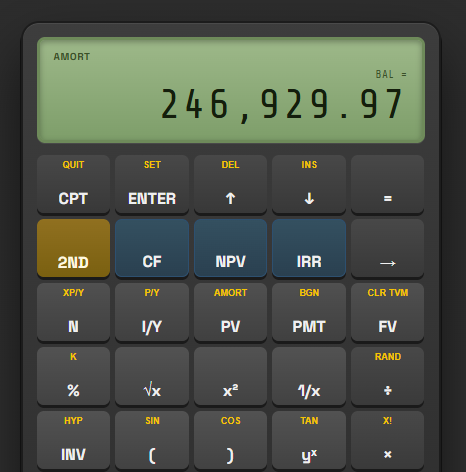
BAL = 246,929.97 after entering P1 = 1 and P2 = 12 in the AMORT worksheet.
Key Insight from Year 1: Out of the total $17,986.51 paid by the borrower during Year 1 ($1,498.876 × 12), a massive 82.9% ($14,916.48) went purely toward interest charges, while only 17.1% ($3,070.03) reduced the actual debt balance!
Phase C: Analyze Year 2 Amortization (Payments 13 through 24)
To inspect Year 2 performance without re-entering TVM parameters, simply update P1 and P2 inside the AMORT worksheet:
| Keystroke Sequence | LCD Display Reading | Action / Result Description |
|---|---|---|
| ↑ (or scroll to P1) | P1 = 1.00 |
Scroll back up to P1 setting line. |
13 ➔ ENTER |
P1 = 13.00 |
Set Year 2 start period to Month 13. |
| ↓ | P2 = 12.00 |
Scroll to P2 setting line. |
24 ➔ ENTER |
P2 = 24.00 |
Set Year 2 end period to Month 24. |
| ↓ | BAL = 243,670.59 |
Ending Balance after Year 2: $243,670.59. |
| ↓ | PRN = -3,259.38 |
Year 2 Principal Reduction: $3,259.38. |
| ↓ | INT = -14,727.13 |
Year 2 Interest Paid: $14,727.13. |
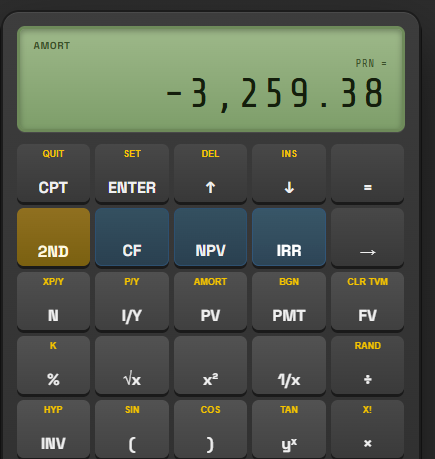
PRN = -3,259.38 for Year 2 (P1 = 13, P2 = 24). Principal reduction increases compared
to Year 1.
5. Analyzing Single Payments vs. Multi-Period Ranges
The BA II Plus AMORT worksheet offers complete flexibility for evaluating both single monthly payments and multi-year ranges:
How to Evaluate a Single Month (e.g. Month 1 Only)
If you want to isolate payment #1 to verify your mortgage statement for the first month:
- Set
P1 = 1➔ Press ENTER. - Set
P2 = 1➔ Press ENTER (set both P1 and P2 to1). - Scroll down:
BAL = 249,751.12(Balance remaining after Month 1)PRN = -248.88(Principal paid in Month 1)INT = -1,250.00(Interest charged in Month 1: $250,000 × 0.5% = $1,250.00)
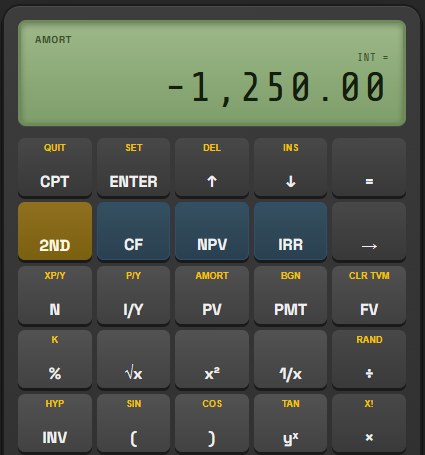
INT = -1,250.00 when P1 = 1 and P2 = 1.
6. Tax Season Strategy: Partial Fiscal Year Amortization
In real-world accounting and personal finance, loans rarely start neatly on January 1st. Suppose a client purchases a commercial property and closes their loan on May 1st. Their fiscal tax year ends on December 31st.
During the first tax year, the owner makes only 8 monthly payments (May through December, payments 1 to 8). To compute tax-deductible mortgage interest for tax filings:
Set Tax Year 1 Range (Months 1 to 8)
Set P1 = 1 ENTER and
P2 = 8 ENTER. Scroll to
INT to read deductible Year 1 interest.
Set Tax Year 2 Range (Months 9 to 20)
For the second tax year (12 full payments from Jan to Dec), set P1 = 9 ENTER and P2 = 20 ENTER. Scroll to INT for Year 2
deductible interest.
This simple P1/P2 setting trick saves accountants hours of manual spreadsheet reconciliation!
7. END Mode vs. BGN Mode in Loan Amortization
By financial convention, almost all consumer loans (mortgages, personal loans, car loans) operate in END Mode (payments made at the end of each monthly compounding period). In END mode, the first payment includes a full month of accumulated interest.
However, if you are analyzing an Annuity Due or lease contract operating in BGN Mode (payments made at the beginning of each period):
- Payment #1 is paid on Day 1, so 100% of Payment #1 goes toward principal reduction (Interest = $0.00 for payment 1).
- When BGN mode is active, the
BGNindicator turns on in the top-left LCD display. The BA II Plus AMORT worksheet automatically adjusts its internal cash flow timing calculations to reflect beginning-of-period interest accruals.
If your mortgage amortization calculations differ slightly from your lender's closing disclosure
statement, verify if the BGN indicator is mistakenly lit on your LCD. Press 2ND ➔ BGN ➔ 2ND ➔ SET ➔ CE/C to switch back to END mode.
8. Common Mistakes & Troubleshooting
Error 1: The "Forgot to Press ENTER" Trap
Unlike standard calculator mode where typing a number immediately updates the register, worksheet menus
on the BA II Plus require you to press the ENTER key to
confirm changes. If you type 12 for P2 and immediately press the down arrow key (↓) without pressing ENTER, P2 will silently revert to its previous stored value!
Rule of thumb: Look for the small equal sign (=) next to P1 or P2. If there is no equal
sign, the value has not been saved yet!
Error 2: Inconsistent Payment Frequencies (P/Y vs C/Y)
If your interest rate is compounded monthly, ensure P/Y = 12 and C/Y = 12 under
2ND ➔ P/Y. If P/Y is left
at factory default (P/Y = 1), the AMORT worksheet will calculate annual compounding instead
of monthly compounding, yielding incorrect balance and interest outputs.
Error 3: Negative PV Sign Errors
Always enter borrowed loan principal as a positive cash flow (PV >
0) and payments as negative cash outflows (PMT <
0). Mismatched signs can trigger Error 5 or cause BAL calculations to grow
rather than shrink.
Try Amortization Calculations in Your Browser
Practice setting P1 and P2, testing TVM parameters, and viewing instant loan schedules using our fully interactive BA II Plus Calculator.
Launch BA II Plus Calculator Simulator ➔9. Frequently Asked Questions
Answer: No. Pressing 2ND ➔ CLR WRK inside the AMORT worksheet resets P1 to 1 and P2 to 1, but leaves your stored TVM values (N, I/Y, PV, PMT, FV) completely intact.
Answer: Yes! Set P1 = 1 ENTER
and P2 = 360 ENTER. Scroll down to
INT. For our $250,000 6.0% loan, total cumulative interest over 30 years equals
-$289,595.47 (meaning you pay back a total of $539,595.47 on a $250,000 loan!).
Answer: Banks round monthly mortgage payments to the nearest cent ($1,498.88). The BA II Plus calculator maintains unrounded floating-point internal precision (e.g. $1,498.87634...). Over 360 payments, this penny rounding can cause a minor $0.50 - $2.00 variance in final balance projections.